
First use
Before your first flight, check how Duo works and adjust its settings on the ground. The acoustic variometer works without a phone.
- 1
Connect the charging cable
Connect Duo to a USB power source. When Duo is off, a steady red light means the battery is charging. The light turns white when a full charge is confirmed. When Duo is on, the light shows its operating or Bluetooth status.
- 2
Switch on and release the button
Press the power button to start Duo on battery power, then release it. If it is already connected to USB and idle, hold the button for one second. A blinking blue light means Duo is available to connect.
- 3
Choose standalone or connected use
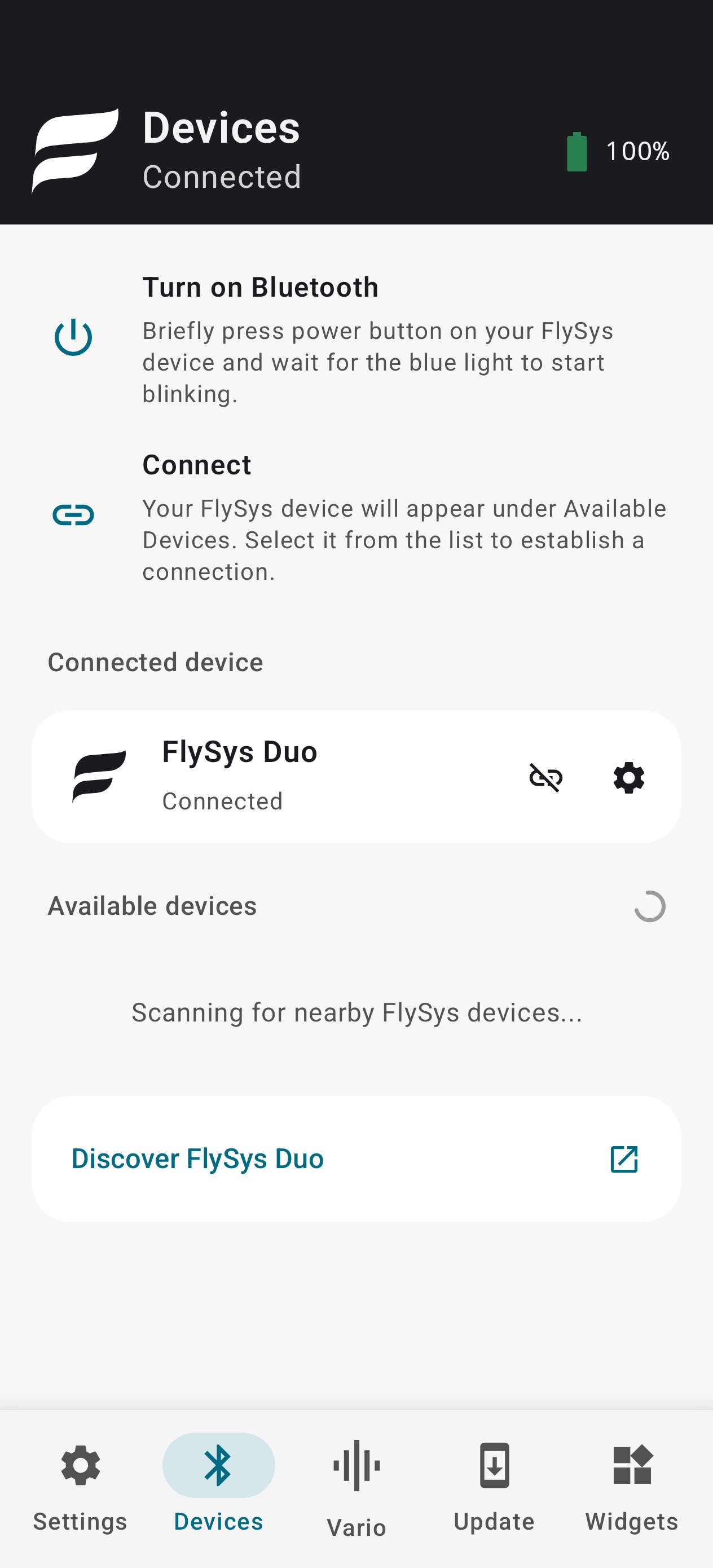
You can use Duo without connecting it to an app. When the connection window expires, the light turns green. To change settings or view measurements, open Devices in the FlySys app and connect while the blue light is blinking.
- 4
Check before you fly
Check the battery level in the app and secure the device. Test the sound on the ground and make sure it is audible. Finish adjusting settings before takeoff.
Device overview
Use the button to switch Duo on or off, allow a Bluetooth connection and change the volume. The status light shows the current operating state. The USB connector is used for charging and connecting to a computer.
- 1
Power button
While Duo is on and disconnected, a short press makes it available for a Bluetooth connection after a brief delay. Two quick short presses change the volume. After releasing the initial power-on press, hold the button for one second to switch off. The same one-second hold switches it on from USB idle.
- 2
USB connector
For a desktop connection, use a cable that supports data. A charge-only cable can power Duo but cannot connect it to the desktop app.
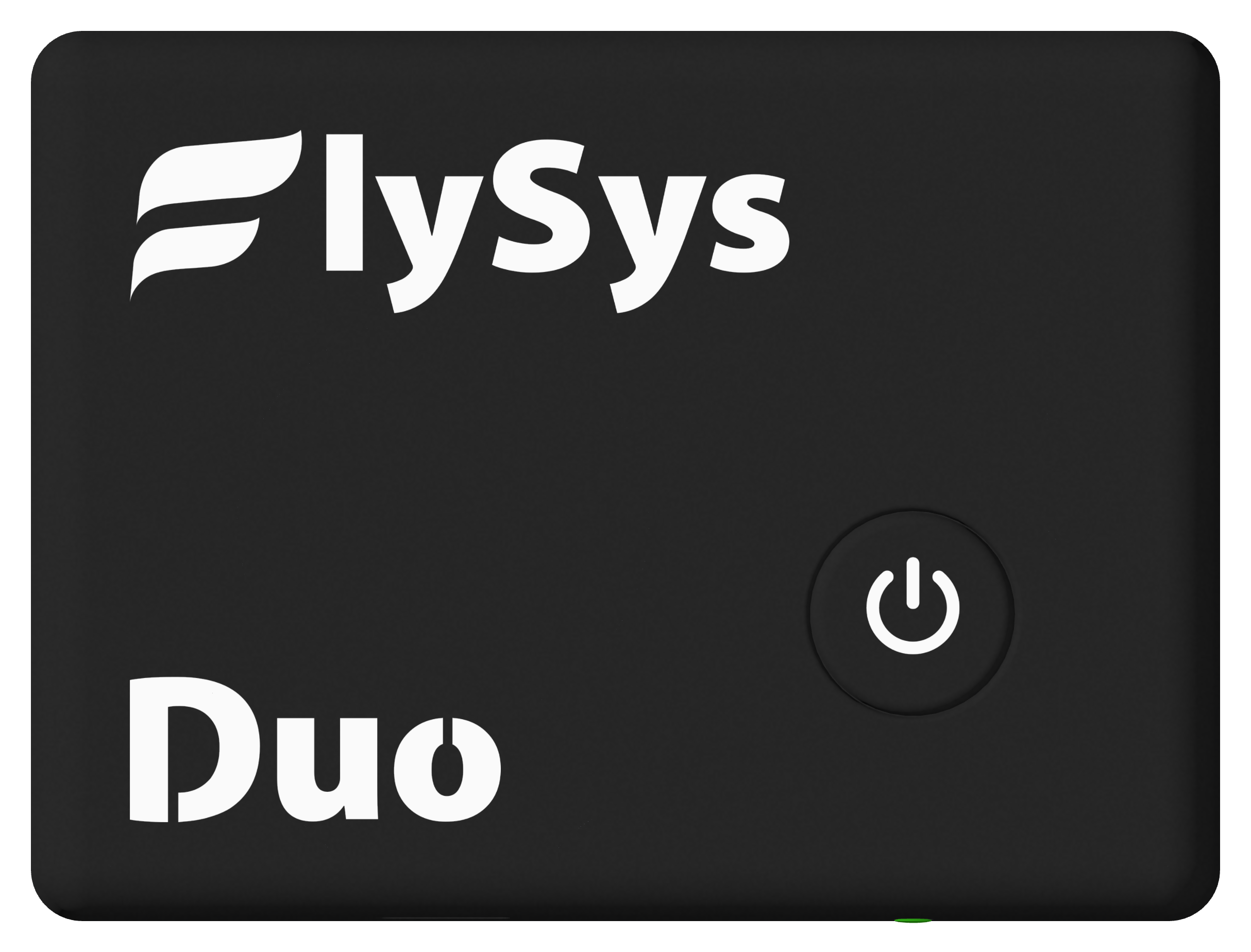
Status light
The light shows the device status through its colour and whether it is steady or blinking. During Bluetooth discovery or a connection, it replaces the green operating light. A sensor fault is indicated by red flashes, including during a Bluetooth connection.
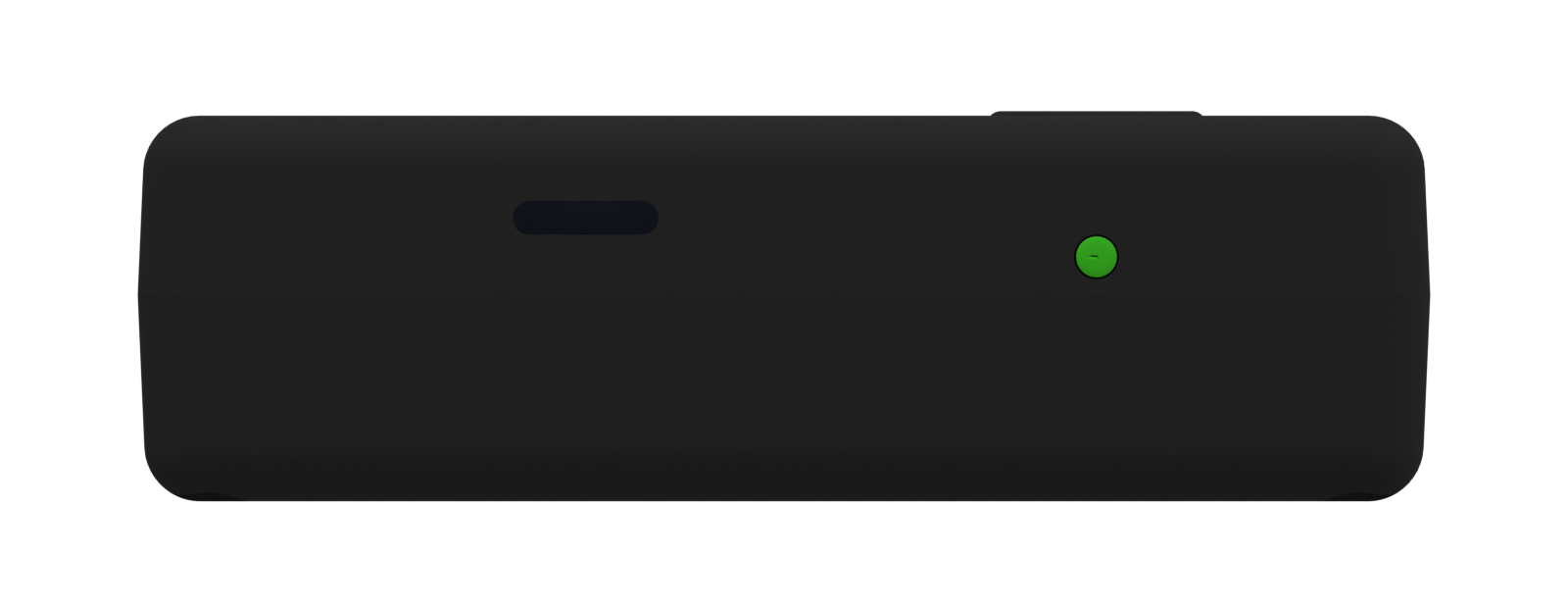
Green · steady
Duo is on. Bluetooth is not connected and the device is not currently available for a new connection.
Blue · blinking
Ready to connect over Bluetooth. Open Devices in the app.
Blue · steady
Bluetooth connected. Data transfers may cause faster blinking.
Red · steady, device off
Charging from USB.
White · steady, device off
Duo is connected to USB and the battery is fully charged. The light may take a few seconds to turn white.
Red · short flash every second
A sensor needed for operation has failed. The variometer and live measurements are paused. Do not rely on the device for flight information. Follow the troubleshooting instructions below.
Using Duo in flight
The variometer indicates climb with repeating beeps and sink with a continuous tone. Sound starts when the vertical speed crosses the corresponding threshold set in the app.
- 1
Mounting the device
Secure Duo so it cannot fall or interfere with your controls. Keep the sound outlet and pressure openings unobstructed. Check operation before every flight.
- 2
When there is no sound
Silence does not necessarily mean the device is off. Vario sound may be disabled, or your vertical speed may be between the configured sound thresholds.
- 3
Switching off after use
Hold the button for one second to switch off. On battery, Duo powers down; on USB, it enters idle and can continue charging.
Connecting to the app
Connect to Duo from the FlySys app. Pairing in the phone’s Bluetooth settings is not required.
- 1
Mobile · Bluetooth
Enable Bluetooth and grant the app the permissions it requests for device discovery. Open Devices. Switch Duo on or briefly press its button: blue blinks. Select Duo in the app. Steady blue confirms a connection. The default discovery window is 30 seconds; press the button again if it expires.
- 2
Desktop · USB
Connect Duo with a USB data cable, switch it on and open the FlySys desktop app. Select the connected device. Use the app to inspect settings, test tones and manage firmware updates.
- 3
Reconnect
After deliberately disconnecting, briefly press Duo’s button to allow a new connection. Keep the phone close during setup. If the app asks for a device password, enter the password configured for your Duo.
Sound settings
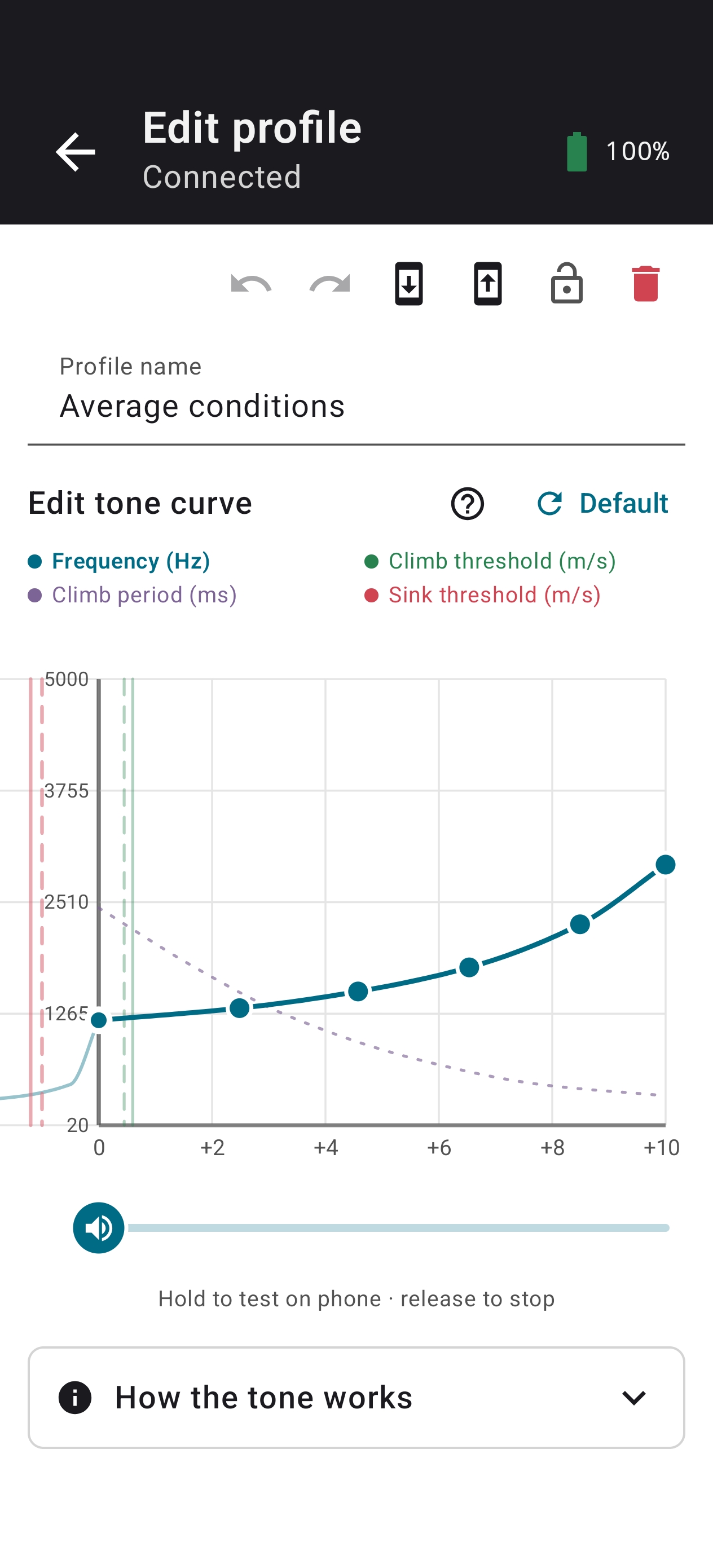
You can change the volume with the button on Duo. To adjust the sound thresholds, pitch and climb rhythm, open Settings and the tone curve editor in the app. Test your settings before flying.
- 1
Volume · double press
With Duo switched on, briefly press and release the button twice in quick succession, no more than 0.3 seconds apart. Each double press changes the volume to the next level: . Both vario and system sounds use the new level. If system sounds are enabled, a short beep confirms the change. The setting is saved automatically; sounds that are muted remain muted.
- 2
Thresholds
Climb and sink thresholds determine when the variometer starts making sound. Check that vario sound is enabled if you want acoustic feedback.
- 3
Pitch and rhythm
Pitch controls the tone frequency at a given vertical speed. Climb period controls the pulse rhythm, with equal sound and pause. Sink is continuous and has no period control.
- 4
Testing and saving settings
Hold the test-speed track in the mobile editor to hear a preview on your phone; release it to stop. This preview does not play on Duo. Use the app’s save/apply action to send your settings, then test device output in Test tone curve.
Charging & care
Check battery level in the connected app before leaving for a flight. Charging indication is shown when Duo is off; a green or blue light while running does not mean charging has stopped.
- 1
Charge in a dry place
Use an undamaged USB cable and power source. Keep the connector dry and clear of debris. Do not charge a wet or visibly damaged device.
- 2
Clean and store
Disconnect the cable before cleaning. Wipe with a soft, dry cloth; do not insert objects into openings. Store dry, away from direct heat. Contact support if the enclosure or battery appears damaged.
Firmware updates
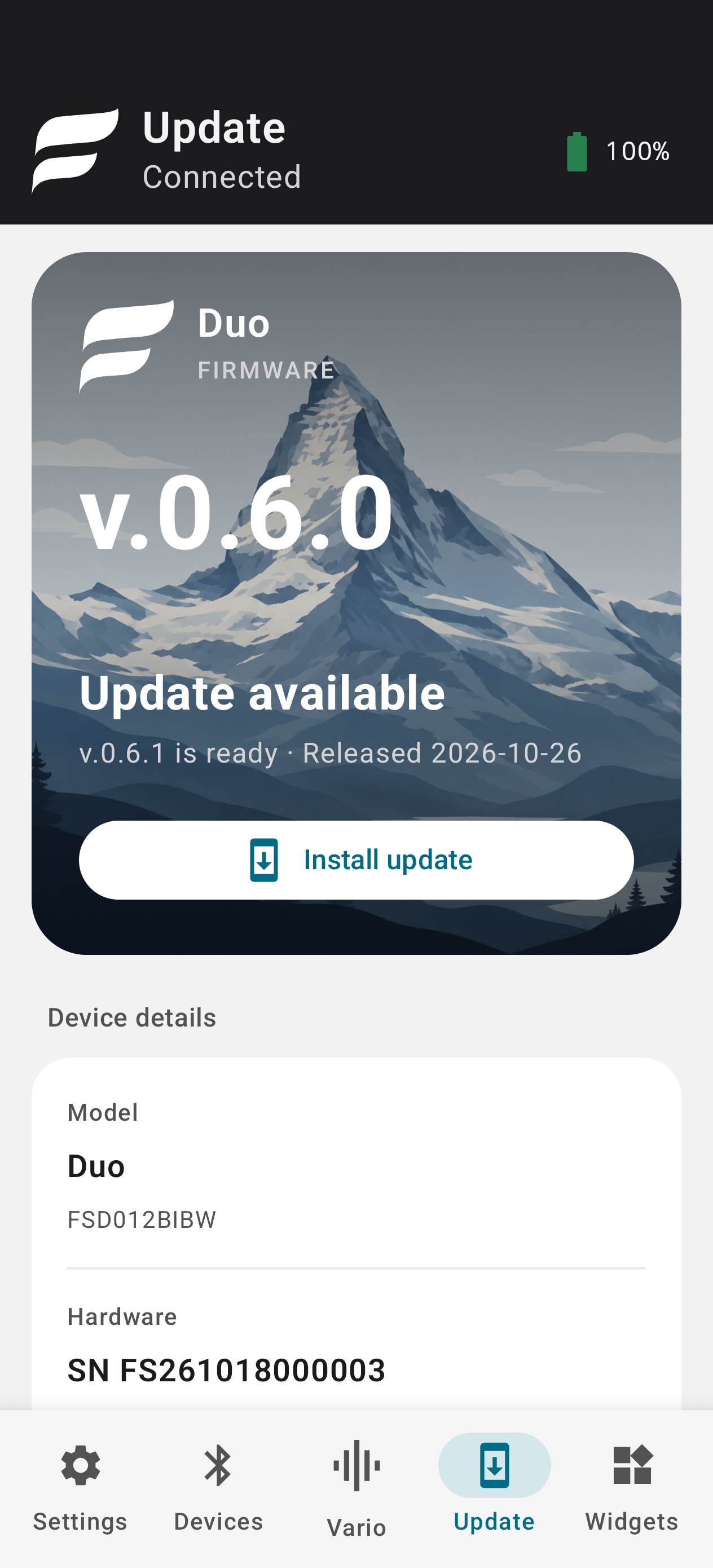
Update the device software in the FlySys app. Install only a version that the app identifies as compatible with your connected device.
- 1
Prepare
Check battery level and keep your phone or computer powered. Connect Duo, open the firmware update screen and review the available version.
- 2
Installing the update
Start the update and keep the connection in place. Do not switch Duo off or unplug its data cable during transfer. Wait for the app to report completion and for the device to restart.
- 3
Reconnect and verify
Reconnect, check the firmware version and review your settings. If the update fails, follow the app’s recovery instructions; if it remains unavailable, contact support with the displayed error.
Troubleshooting
Select the problem below and follow the instructions. Check the device on the ground before using it again in flight.
Duo will not switch on
Connect a known-working USB cable and power source. Let the battery charge, then hold the button for one second to wake from USB idle. If there is no response, contact support; do not open the enclosure.
My phone cannot find Duo
Check Bluetooth and app permissions. Briefly press Duo’s button and look for blinking blue, then scan in Devices. Disconnect any other app already connected to Duo. If discovery expires, press the button again. Do not pair through the phone’s system Bluetooth menu.
I cannot hear the variometer
Check that Duo is running and vario sound is enabled. Review climb and sink thresholds. Test device output using Test tone curve; the editor’s phone preview only plays on your phone. Silence at rest can be normal.
The red light flashes every second
This indicates a fault in a sensor needed for operation. Stop relying on Duo for flight information. Restart on the ground. If the pattern persists, connect to the app and send the displayed diagnostics to support.
Duo charges over USB, but the desktop app cannot connect
Use a data-capable USB cable, try another USB port and switch Duo on. Close other applications that may be using the device, then reconnect in FlySys.
Support
Contact FlySys support with your device serial number, firmware version, app version and a description of the light pattern or error. Look for device information in the connected app.
Contact supportSign in with your FlySys account to use the support portal, or email info@flysys.eu.
Manual v1.0 · Updated 10 November 2026 · FlySys Duo
Instructions describe the current Duo controls and FlySys app workflows. Screenshots show mobile app 0.6.4; your screen may differ. Check firmware compatibility in the connected app before updating.
flysys.eu/duo/manual