
Your first flight starts here
Get to know Duo on the ground before using it in flight. You can use its acoustic variometer without a phone.
- 1
Connect the charging cable
Connect Duo to a USB power source. With the device off, steady red indicates charging; steady white indicates a confirmed full battery. While Duo is running, the light shows its operating or Bluetooth state instead.
- 2
Switch on and release the button
Press the power button to start Duo on battery power, then release it. If it is already connected to USB and idle, hold the button for one second. A blinking blue light means Duo is available to connect.
- 3
Choose standalone or connected use
For standalone use, let the Bluetooth window close: the light turns green. To configure Duo or view live data, open the FlySys app and connect from Devices while the blue light is blinking.
- 4
Check before you fly
Check the battery in the app, secure the instrument and test your chosen sound settings on the ground. Make sure you can hear it. Configure your device before takeoff.
Meet your Duo
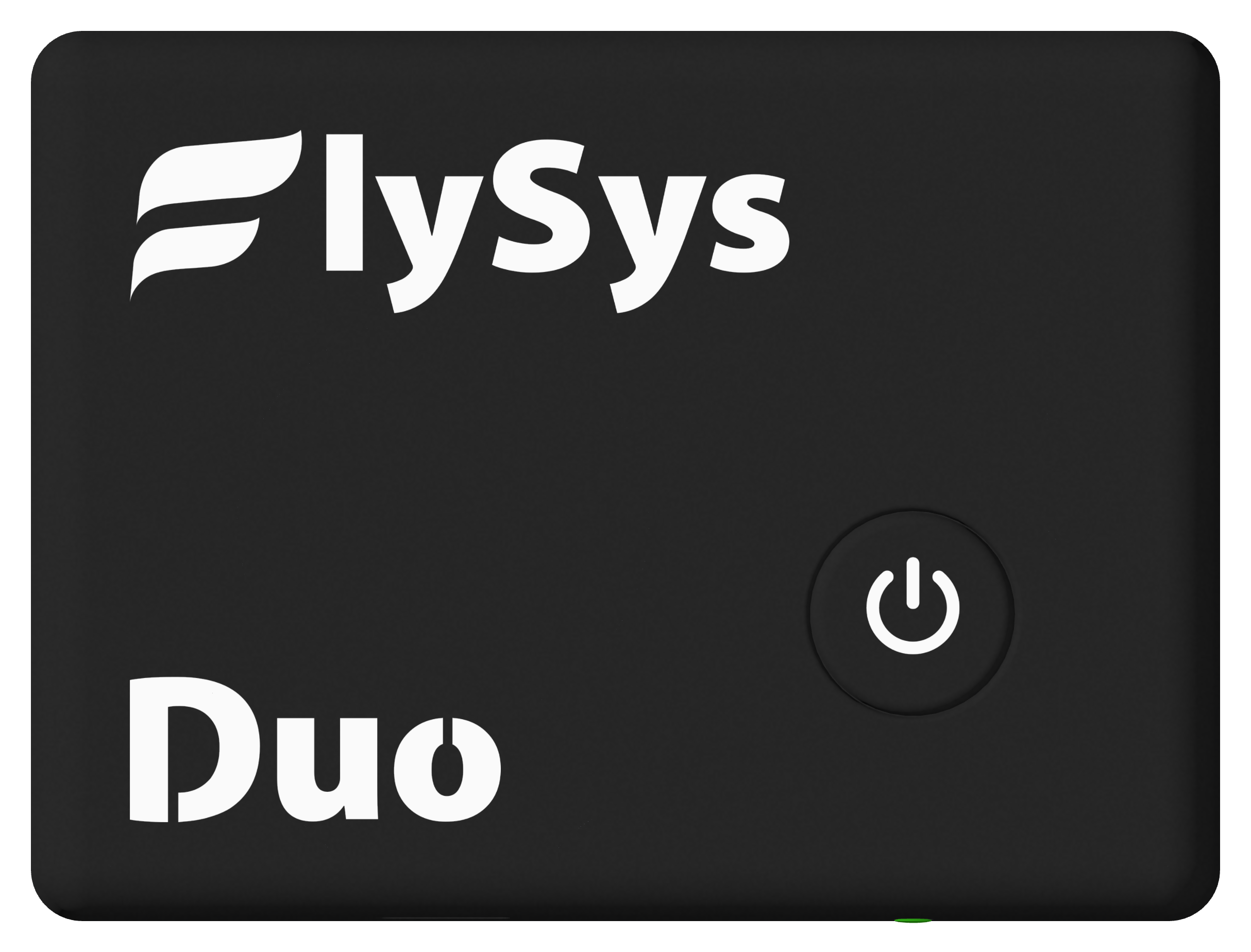
One button handles power and Bluetooth discovery. The RGB indicator tells you what Duo is doing. The USB connector is used for charging and desktop communication.
- 1
Power button
Short press: open Bluetooth discovery while running. Hold for one second after the initial startup press has been released: switch off or wake from USB idle.
- 2
USB connector
For a desktop connection, use a cable that supports data. A charge-only cable can power Duo but cannot connect it to the desktop app.
Button, lights & sounds
Read the colour together with its pattern. Bluetooth and fault indications take priority over the normal running light.
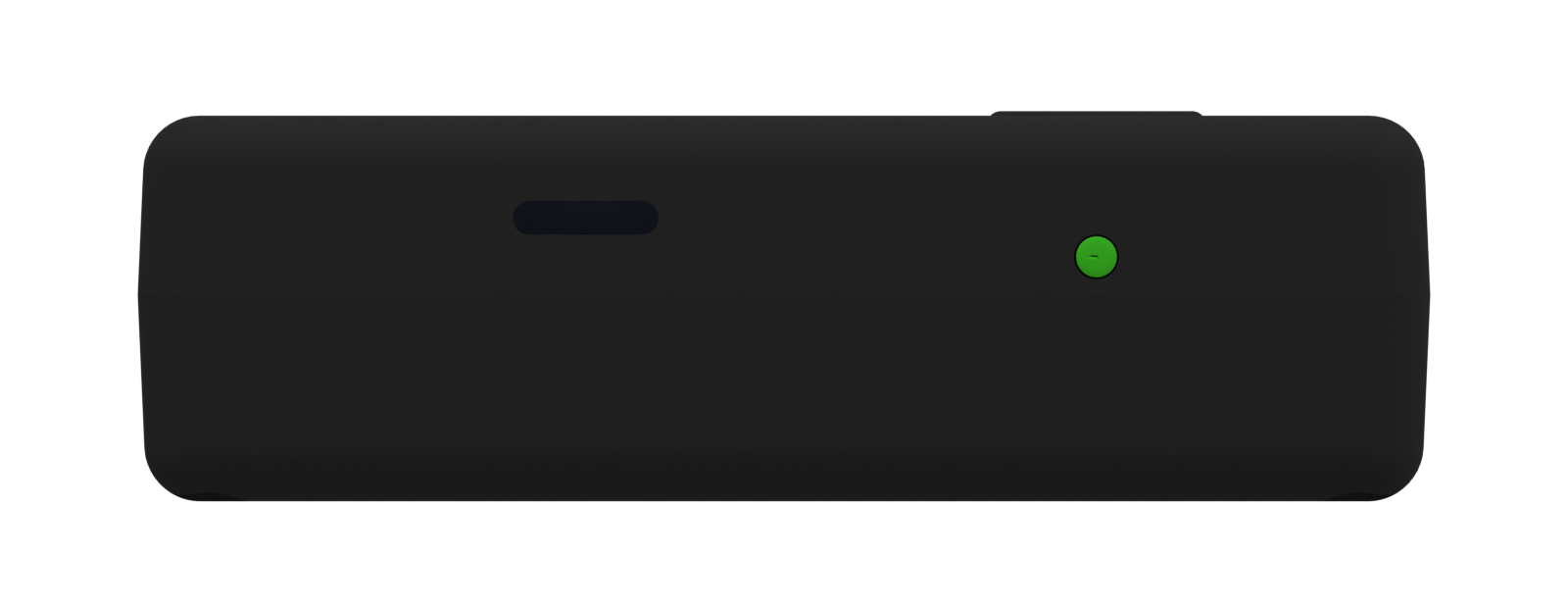
Green · steady
Running, without an active Bluetooth discovery window or connection.
Blue · blinking
Ready to connect over Bluetooth. Open Devices in the app.
Blue · steady
Bluetooth connected. Data transfers may cause faster blinking.
Red · steady, device off
Charging from USB.
White · steady, device off
USB connected and full battery confirmed. Confirmation may take a few seconds.
Red · short flash every second
Required-sensor fault. Vario and live measurements are paused. Do not rely on the instrument; see troubleshooting.
Using Duo in flight
Duo turns changes in vertical speed into sound. Climb uses repeating pulses; sink uses a continuous tone when the configured sink threshold is crossed.
- 1
Secure and check
Secure Duo so it cannot fall or interfere with your controls. Keep the sound outlet and pressure openings unobstructed. Check operation before every flight.
- 2
Understand silence
Silence does not necessarily mean the device is off. Vario sound may be disabled, or your vertical speed may be between the configured sound thresholds.
- 3
Finish your flight
Hold the button for one second to switch off. On battery, Duo powers down; on USB, it enters idle and can continue charging.
Connect to FlySys
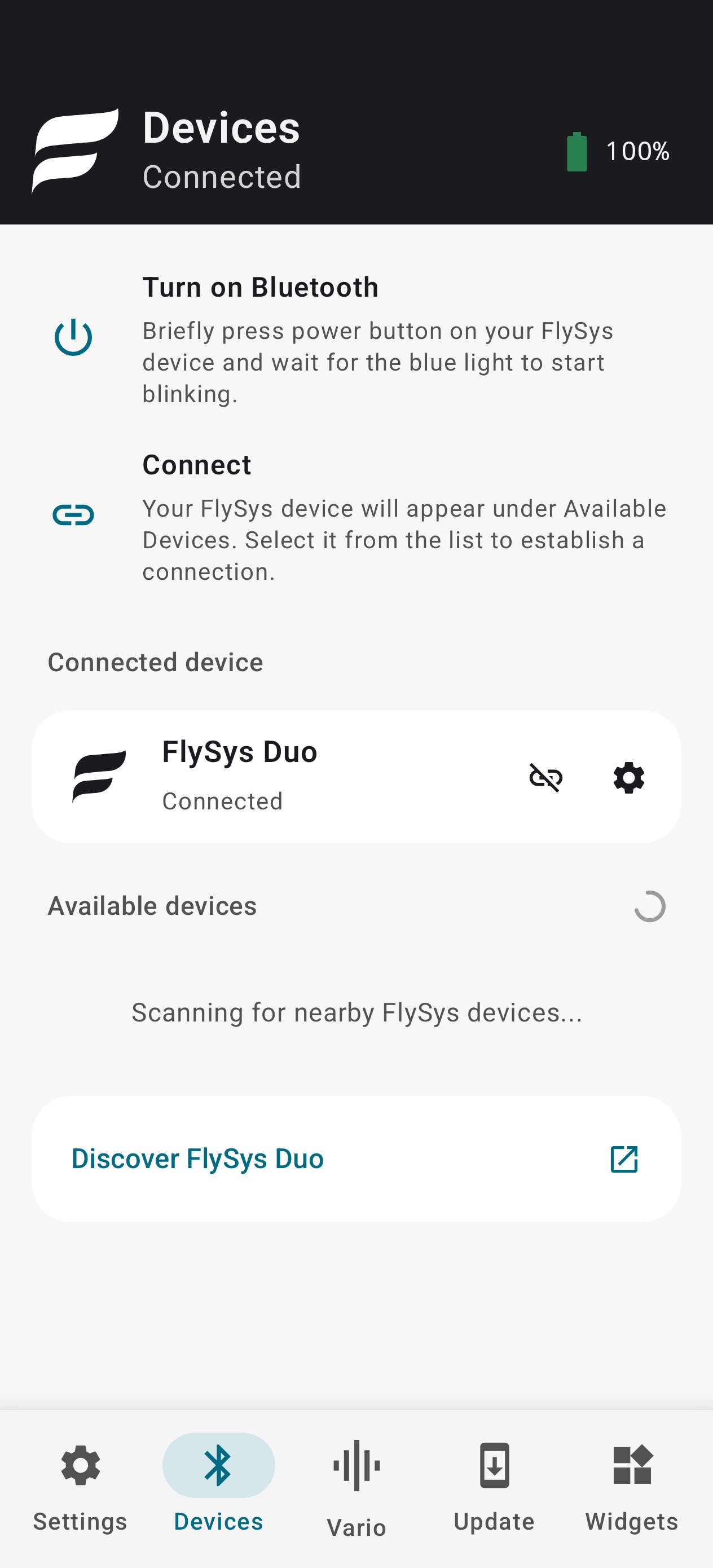
Connect through the FlySys app, rather than pairing in the phone’s Bluetooth settings. Duo does not use Bluetooth pairing or bonding.
- 1
Mobile · Bluetooth
Enable Bluetooth and grant the app the permissions it requests for device discovery. Open Devices. Switch Duo on or briefly press its button: blue blinks. Select Duo in the app. Steady blue confirms a connection. The default discovery window is 30 seconds; press the button again if it expires.
- 2
Desktop · USB
Connect Duo with a USB data cable, switch it on and open the FlySys desktop app. Select the connected device. Use the app to inspect settings, test tones and manage firmware updates.
- 3
Reconnect
After deliberately disconnecting, briefly press Duo’s button to allow a new connection. Keep the phone close during setup. If the app asks for a device password, enter the password configured for your Duo.
Make the sound yours
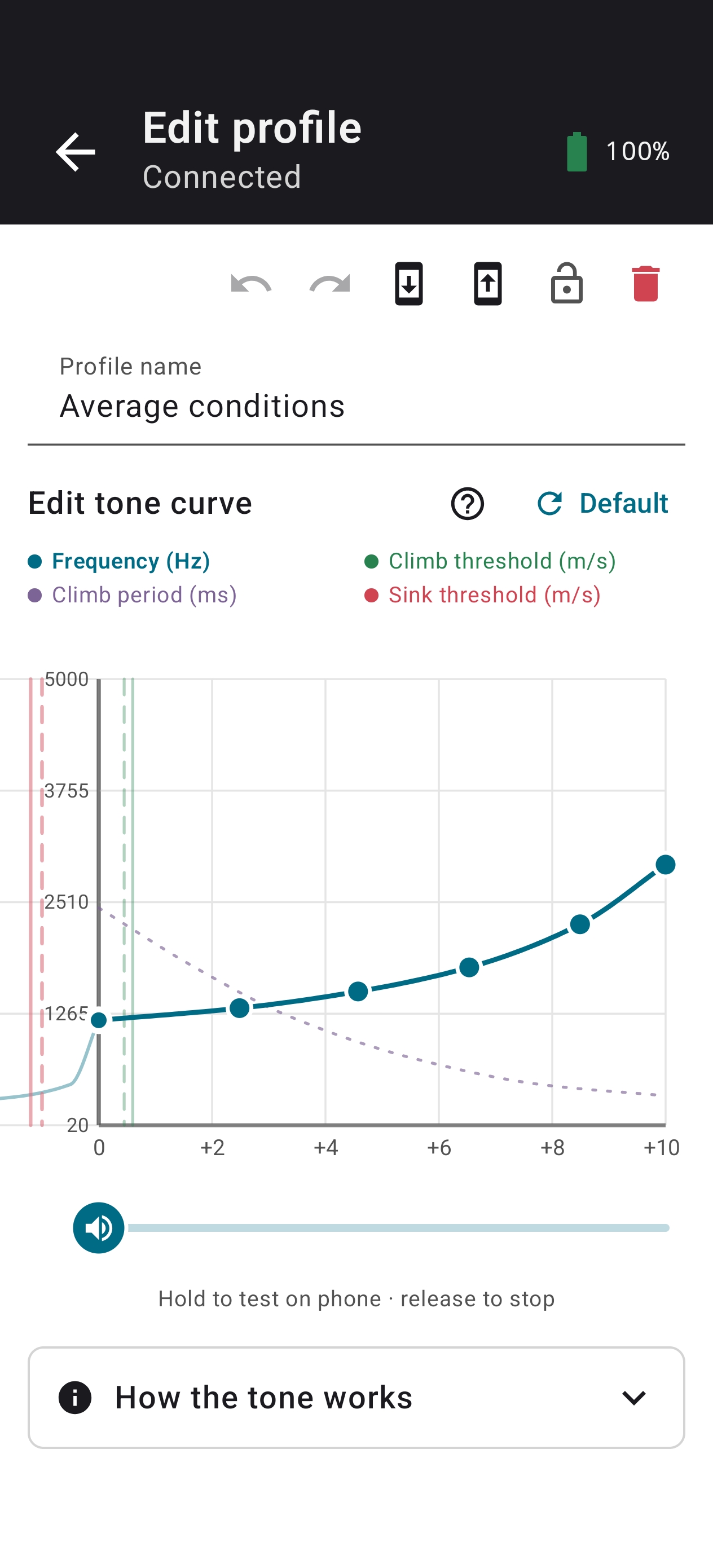
In the app, open Settings and the tone curve editor. Start with small changes and test them before flying.
- 1
Thresholds
Climb and sink thresholds determine when the variometer starts making sound. Check that vario sound is enabled if you want acoustic feedback.
- 2
Pitch and rhythm
Pitch controls the tone frequency at a given vertical speed. Climb period controls the pulse rhythm, with equal sound and pause. Sink is continuous and has no period control.
- 3
Preview, then apply
Hold the test-speed track in the mobile editor to hear a preview on your phone; release it to stop. This preview does not play on Duo. Use the app’s save/apply action to send your settings, then test device output in Test tone curve.
Charging & care
Check battery level in the connected app before leaving for a flight. Charging indication is shown when Duo is off; a green or blue light while running does not mean charging has stopped.
- 1
Charge in a dry place
Use an undamaged USB cable and power source. Keep the connector dry and clear of debris. Do not charge a wet or visibly damaged device.
- 2
Clean and store
Disconnect the cable before cleaning. Wipe with a soft, dry cloth; do not insert objects into openings. Store dry, away from direct heat. Contact support if the enclosure or battery appears damaged.
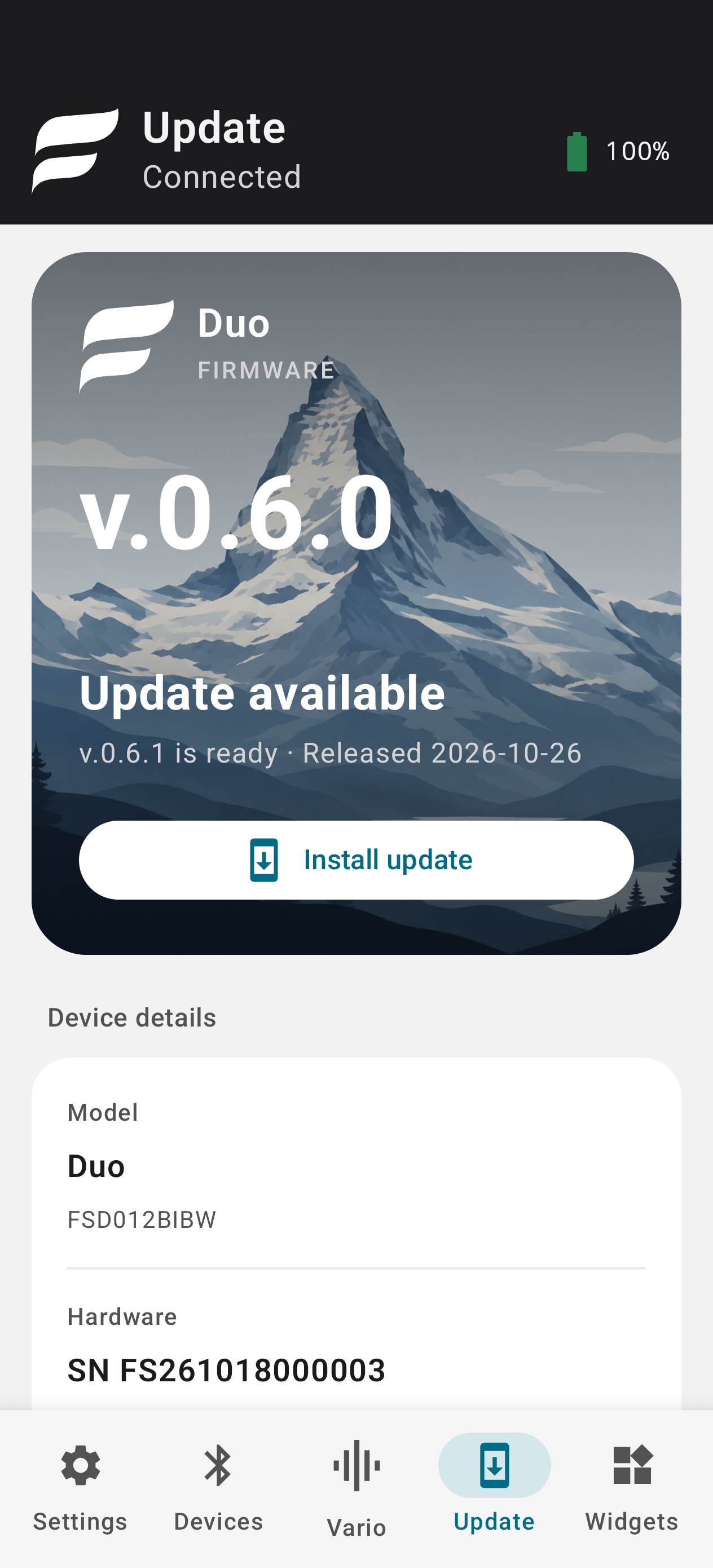
Update your Duo
Use the firmware update workflow in the FlySys app. Choose only an update offered as compatible with the connected device.
- 1
Prepare
Check battery level and keep your phone or computer powered. Connect Duo, open the firmware update screen and review the available version.
- 2
Let the update finish
Start the update and keep the connection in place. Do not switch Duo off or unplug its data cable during transfer. Wait for the app to report completion and for the device to restart.
- 3
Reconnect and verify
Reconnect, check the firmware version and review your settings. If the update fails, follow the app’s recovery instructions; if it remains unavailable, contact support with the displayed error.
Let’s get you going again
Start with the symptom you see. Carry out these checks on the ground.
Duo will not switch on
Connect a known-working USB cable and power source. Let the battery charge, then hold the button for one second to wake from USB idle. If there is no response, contact support; do not open the enclosure.
My phone cannot find Duo
Check Bluetooth and app permissions. Briefly press Duo’s button and look for blinking blue, then scan in Devices. Disconnect any other app already connected to Duo. If discovery expires, press the button again. Do not pair through the phone’s system Bluetooth menu.
I cannot hear the variometer
Check that Duo is running and vario sound is enabled. Review climb and sink thresholds. Test device output using Test tone curve; the editor’s phone preview only plays on your phone. Silence at rest can be normal.
The red light flashes every second
This pattern indicates a required-sensor fault. Stop relying on Duo for flight information. Restart on the ground. If the pattern persists, connect to the app and send the displayed diagnostics to support.
USB charges, but the desktop app cannot connect
Use a data-capable USB cable, try another USB port and switch Duo on. Close other applications that may be using the device, then reconnect in FlySys.
Need a hand?
Contact FlySys support with your device serial number, firmware version, app version and a description of the light pattern or error. Look for device information in the connected app.
Open supportThe support portal requires a FlySys account. You can also email info@flysys.eu. Reading this manual does not.
Manual v1.0 · Updated 10 November 2026 · FlySys Duo
Instructions describe the current Duo controls and FlySys app workflows. Screenshots show mobile app 0.6.4; your screen may differ. Check firmware compatibility in the connected app before updating.
flysys.eu/duo/manual-v1.0